Unlimited Video Downloads
You can download embedded videos from articles, blogs, and other sites online without a daily download limit. Easily collect tutorial videos, save practical reference materials, and even build a personal video library.

Download embedded videos from articles, blogs, and other websites in just a few clicks.
 Free to UseNo InstallFast Parsing
You can download embedded videos from articles, blogs, and other sites online without a daily download limit. Easily collect tutorial videos, save practical reference materials, and even build a personal video library.

Looking for a tool to download embedded videos from websites? You can paste a valid video link into FliFlik to parse it automatically and get download options, and the whole process takes only a few dozen seconds.

FliFlik is fully compatible with browsers on Windows PC, Mac, tablet, or smartphone. To save cooking tutorials on laptop or useful guides on phone, you can use FliFlik embedded video downloader with no installation needed.

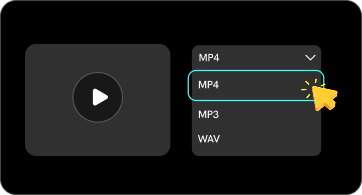
Start downloading embedded videos without creating an account or going through a registration process. You can open the FliFlik, enter a video URL, and select MP4 to download. Bookmark this site now!

Download embedded videos securely without signing up or sharing personal information. FliFlik makes it easy to save tutorials, reference videos, and online clips while respecting your privacy and content permissions.

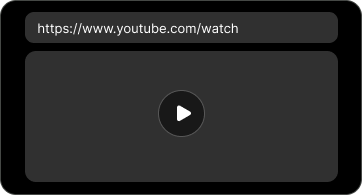
Want to download an embedded video from a website but can't find a download button? You can copy the webpage URL and paste it into FliFlik. Click to save the embedded video in available formats such as MP4.
Follow these three simple steps to download embedded videos online.
Copy the URL of the webpage containing the embedded video you want to download.
Paste the video URL into FliFlik and wait for the tool to detect the available video download options.
Select MP4 format, and click Download to save the embedded video to your device.
Have you ever watched an embedded video on a website and wanted to download it? It can be hard to get a copy of an embedded video because they are often streamed instead of saved to your computer. In this article, we’ll talk about the best ways to download an embedded video.
An embedded Vimeo video is a video that is inserted into a web page. The video is therefore not as simple to download as a regular Vimeo video. If you have tried to save it to watch later or for some other reason, you know that there is no download button to tap on. You need to...
You want to insert a YouTube video into PowerPoint for your presentation. It’s a fantastic idea, right? But this process is much more challenging than it might seem at first glance. If you have been struggling with YouTube and PowerPoint, searching for a how to add a YouTube video in PowerPoint...
Want to add videos to your website or share video content across platforms? Please refer to the simple guide below to learn how to embed Facebook and YouTube videos into your webpage.
⭐ How to embed video on Facebook?
To embed a Facebook video on your website, open the public video post and find the "Embed" option in the menu. Copy and paste the embed code into your website's HTML editor. Save your changes and preview the page to ensure the video displays correctly.
⭐ How to embed a YouTube video?
pen the YouTube video you wish to embed, then click "Share" followed by "Embed." Copy the generated HTML code and paste it into the HTML editor of your website or blog. Save and preview the page to ensure the embedded video plays correctly.
Yes, if the video is supported and offers MP4 as a download option. Select MP4 and click download to save the video to your device.
 We use cookies to improve your FliFlik experience. Read our policy here.